
Maintain your teacher profile
Review your professional profile, choose its audience and share only intended sections.
Checked on 29 October 2026
Overview
Your teacher profile connects your professional information and selected work. Check the source records, decide what visitors should see and preview the page before sharing.
Get to know the screen
Practice example: all names, records and amounts are fictional. Options vary with your school’s curriculum, currency and access.
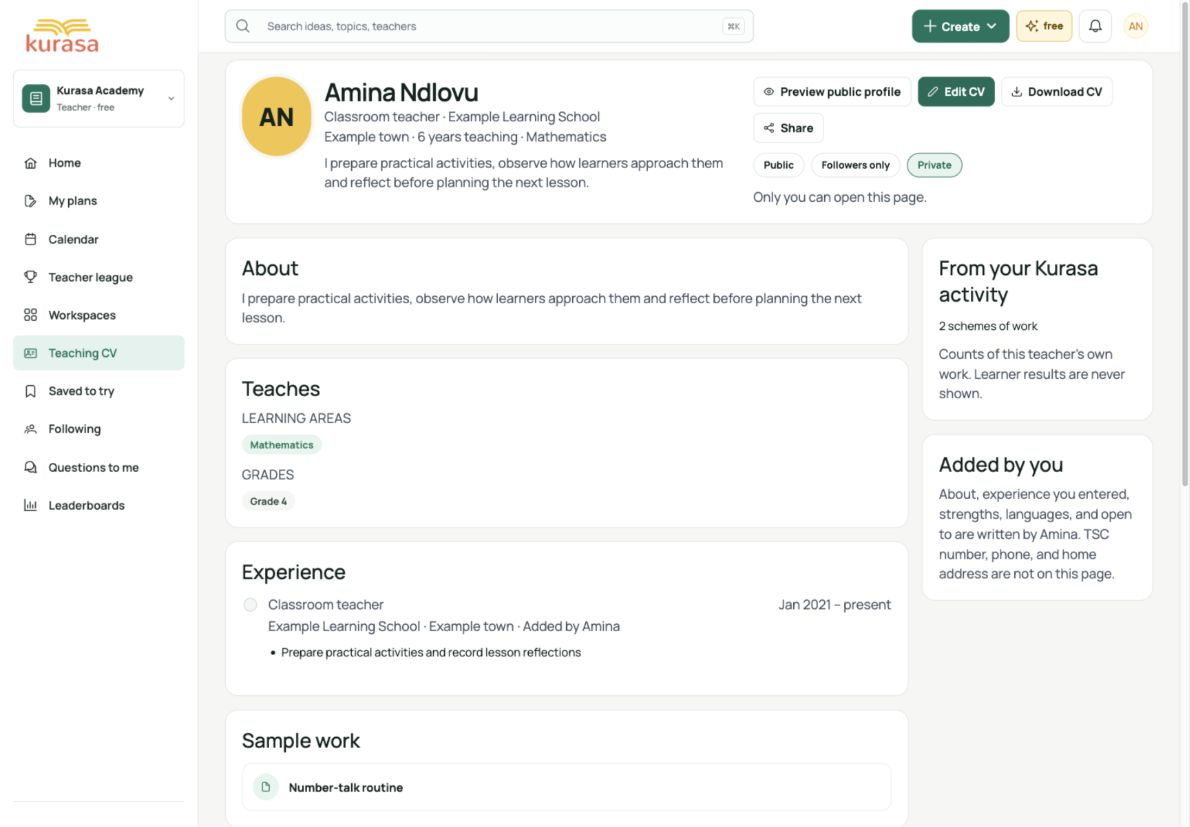
Phone example

Interface labels are shown in English. Follow the translated steps below to find each control. Follow the sequence, review the recorded information and choose the next step.
Who can use this feature
Use your own signed-in account. Academy can be used without joining a school. Your professional profile belongs to your account; school records and school access remain separate.
Before you start
Have accurate CV information and permission to share any sample resource or referee name. Keep learner information and internal school material out of public content.
Required and optional fields
| Field | Requirement | Format or example | Prerequisite |
|---|---|---|---|
| Visibility, section switches and optional profile link | Required when applicable | Visibility and section switches save when changed. Review Private, Followers only, Anyone with the link or Public before selecting: Public can be indexed. Changing a custom link needs 3–40 lowercase letters/numbers with single hyphens between groups and an available name. | Your account, current selections and the available saved source records. |
| Referees and sample work | Optional | Optional referees: at most six, each with a name up to 120 characters; role up to 120 and organisation up to 160 are optional. Enter one per line as Name | Role | Organisation; the field saves on change. Do not enter phone/email. Choose only resources you created for sample work. | Your account, current selections and the available saved source records. |
Picklist prerequisites
| Choice | Options come from | Earlier selection | If missing |
|---|---|---|---|
| Skills, languages, sample work and record counts | Available CV choices, resources you created and your own recorded activity. | Use Edit CV for skills/languages. Create an appropriate resource before choosing sample work and enable the relevant section. Review counts before choosing which to show. | A locked count or empty sample list needs an available source record. Do not upload learner details or invent work to fill it. Activity counts describe records, not teaching quality. |
Desktop walkthrough
Choose profile sections and enter a valid link name.
Screen walkthrough · 0:45Download GIF ↓- Open the account menu → My teacher profile to reach your CV. Use Edit CV for your details. If your Workspace offers the separate My professional profile view, it also provides publishing controls; the GIF shows that view.
- Review Who can see it. Private is only you; Followers only is the school-linked audience shown; Anyone with the link is not intended for indexing; Public may appear in search. Changing the option saves immediately.
- In the professional-profile management view, section switches and record checkboxes save immediately. On your CV, use Edit CV and the section editors; review each editor’s Save action before leaving.
- If needed, change the profile link, add permitted referees or select your own sample resources. Check the field requirements; do not publish learner names, photos, marks or internal school records.
- Use Preview public profile on your CV, or View public page in the management view, to inspect the audience and sections. Then Copy or Share if intended. Read colleague comments before approving each one.
Mobile walkthrough
Choose profile sections and enter a valid link name.
Screen walkthrough · 0:45Download GIF ↓On a phone, use the account menu and scroll through one section at a time. Controls may stack below the content. Close the keyboard before reviewing the next action, then reopen the page to check what was saved.
Wait for saving to finish and reopen the page. Check errors before retrying. Review the intended audience before sharing a link or publishing material.
Save and verify
The visible sections and link match your choices. Reopen settings to verify saved state; a profile preview or activity count does not establish teaching quality.
Troubleshooting
A link, section or sample resource is unavailable
Read the save error and check link format, availability and source records. A section switch may be off or a count locked. Confirm the audience and saved state before retrying or sharing.








