
Sign in and choose your school workspace
Start in the right school, with the right account and access, before preparing a lesson or opening school records.
Checked on 29 October 2026
Switch workspace
To change schools, select the school-name switch link or open the account menu and choose Switch workspace. Choose the other school and check its name again before opening a register, plan or learner record.
To change schools, use the school-name switch link where visible, or the account menu’s Switch workspace option. On a shared phone, sign out from the account menu when you finish.
Overview
Your Kurasa account can connect to more than one school. Sign in with the email address or phone number you gave your school, then check the school name and your role before you start work.
Opening a workspace takes you into that school’s teaching and administration area. Academy and PSL have separate entry points on Account home; choose the school workspace when you need its classes, plans or records.
Get to know the screen
Practice example: all names, records and amounts are fictional. Options vary with your school’s curriculum, currency and access.
Phone example

Interface labels are shown in English. Follow the translated steps below to find each control. Follow the sequence, review the recorded information and choose the next step.
Who can use this feature
Teachers, class teachers, school leaders and administrators use their own accounts. A school must connect your account to the appropriate role. Signing in confirms your identity; it does not give you administrator access or allocate classes.
Before you start
- Have your school’s name and the email address or phone number used for your invitation. Use that same account if you already belong to the school; a second account may show a different set of workspaces.
- For password sign-in, have your existing password. For a code or sign-in link, you need access to the matching inbox or phone. Use a browser with an internet connection.
- Ask the school administrator to confirm your invitation and role if these are still being arranged. You do not need to enter a curriculum, academic year, class or learner identifier to sign in.
Required and optional fields
| Field | Requirement | Format or example | Prerequisite |
|---|---|---|---|
| Required for this method | Enter your own complete address, for example teacher@example.org. Remove accidental spaces. | The email attached to your Kurasa account or school invitation. | |
| Password | Required for this method | Use your account password when choosing email and password sign-in. Check letter case. | Your existing password; use Forgot password? if you need to reset it. |
| Phone and country code | Required for this method | Where phone sign-in is available, check the selected dial code and enter the number linked to your account. | Your registered phone and its actual country code. Available methods depend on the sign-in options shown. |
| Verification code | Required for this method | If prompted, enter the six-digit code from the email or SMS you just requested. Use the latest code and follow the expiry message. | Your own inbox or phone. A code is not your password and should not be shared. |
| School workspace | Required | Choose the school you intend to work in; check its name and the roles displayed on its card. | School access already connected to the signed-in account. |
| Workspace search | Optional | Type part of the school name to narrow the list. Clear the search to see the full list again. | Filters workspaces already available to you; it does not add school access. |
Picklist prerequisites
The school chooser is a list of workspaces connected to your account. The country and language selectors on this website do not select a school in Workspace.
| Choice | Options come from | Earlier selection | If missing |
|---|---|---|---|
| Sign-in method | The email, password, code, link or phone options offered on the sign-in screen. | Choose a method you can receive or complete with your own account details. | Use an available email method if phone sign-in is not offered for your dial code. |
| School list | School memberships and roles attached to the account you signed in with. | Sign in first; confirm any pending invitation with the school administrator. | Clear search, check the All filter if shown, then confirm the account and invitation with your administrator. |
| Classes and learning areas | The selected school’s setup, academic year and teacher allocations. | Open the correct school first. These choices are used later in teaching workflows. | Ask the administrator to check the year, class setup and your allocation; signing in again does not create them. |
Desktop walkthrough
For email-code sign-in, check the destination before requesting a code. Enter the newest six-digit code; verification starts with the sixth digit. After signing in, use the school-name link or Switch workspace, then check the school card and role labels. The walkthrough uses a fictional account.
Check the school, person or class before starting.
Screen walkthrough · 0:45Download GIF ↓- Open Kurasa sign-in. If Welcome back offers a Returning User choice, keep it selected and choose Continue. If you are already signed in, go straight to checking your school.
- Choose Email, enter the address used for your school account and enter your Password. Select Log in. If the screen starts with Phone number or email, enter your identifier and follow Continue or Use password instead as offered.
- For an alternative email method, use Email code instead or Email me a sign-in link when offered. Read the destination shown, then use the code or link from your own inbox. Phone sign-in, where offered, uses the displayed country code and your registered number.
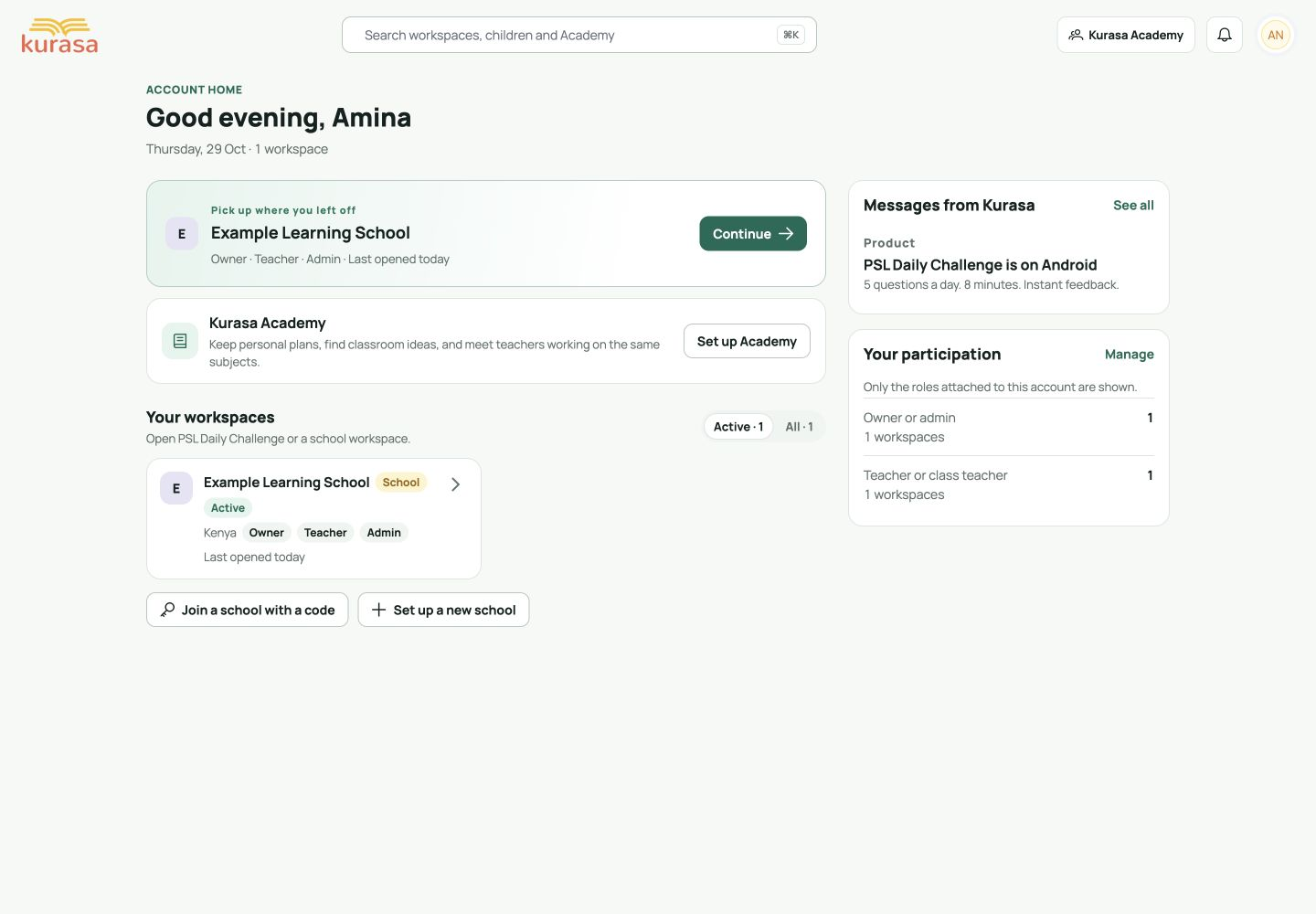
- After sign-in, you may land directly in a school or on Account home. On Account home, find Your workspaces. Use the school-name search or the workspace filters if you have several schools.
- Read the school card before opening it. Check the school name and the role labels, then select the school card. The Continue shortcut reopens the school named on that shortcut; check it each time.
- In the school workspace, confirm the school name in the navigation. Open the account menu to check the current school where shown. The menus you can use depend on your school role and enabled features.
- To change schools, select the school-name switch link or open the account menu and choose Switch workspace. Choose the other school and check its name again before opening a register, plan or learner record.
Mobile walkthrough
Check the school, person or class before starting.
Screen walkthrough · 0:45Download GIF ↓- Open Kurasa sign-in in your phone browser. Use the same account details as on a computer; a phone view does not need a separate school account.
- Choose the sign-in method shown and enter the required details. Scroll the form or dismiss the keyboard if it covers Log in or Continue. If you requested a code, return from your inbox or SMS app to the sign-in page.
- On Account home, scroll to Your workspaces. Search for the school and tap its card. Check the school name rather than choosing a similarly named school or the separate PSL card.
- Inside the school, use the navigation menu to reach school tasks. If the school name is not visible in the compact header, open the menu or account menu to check it before continuing.
- To change schools, use the school-name switch link where visible, or the account menu’s Switch workspace option. On a shared phone, sign out from the account menu when you finish.
Watch the highlighted areas, then follow the written steps with your own account. The sign-in form shown has empty fields; the workspace example has identifying details hidden.
Save and verify
- There is no Save action for choosing a workspace. You are ready to continue when the intended school is open and its name is visible in the navigation or account menu.
- Check that the available menus fit the work your school expects you to do. If a class, learning area or administrative option is missing, ask your administrator to review your role and allocation before changing records.
- Choosing a school does not create a learner, change attendance or save a lesson. Start the next task only after checking the school, and check the academic year and class when that task asks for them.
Troubleshooting
My school is missing
Clear workspace search and use All if a filter is hiding schools. Confirm that you signed in with the contact used for the invitation. Ask your administrator to check pending invitations and your membership before creating another account or a duplicate school.
A code or sign-in link has not arrived
Check the destination address or phone number. Look in spam or junk for email. Follow the on-screen resend timer and use the latest message. If phone codes are unavailable, use an offered email method. Do not send your code or password to support.
My password is not accepted
Check the email address, letter case and accidental spaces. Use Forgot password? on the sign-in screen, or an offered email-code/link method. Ask the administrator for help if the contact on the school invitation is incorrect.
The school opens, but a class or menu is missing
Check the school name first. Ask the administrator to confirm your role, current academic year, class setup and teaching allocation. A successful sign-in does not grant every school permission.
I opened the wrong school
Use the school switch link or Switch workspace in the account menu, choose the intended school and check its name. If you already saved a record in the wrong school, ask the school administrator to help review that record before continuing.








