
Signing into Kurasa Account is simple and secure. Kurasa provides multiple secure ways to log in, allowing users to choose the option that works best for them. All login methods lead you to your assigned workspace based on your access rights. Learn how to log in using email, phone, username, or email OTP on desktop and mobile.
You can access the login page here:
https://app.kurasa.co/
Available login options to signing into Kurasa #
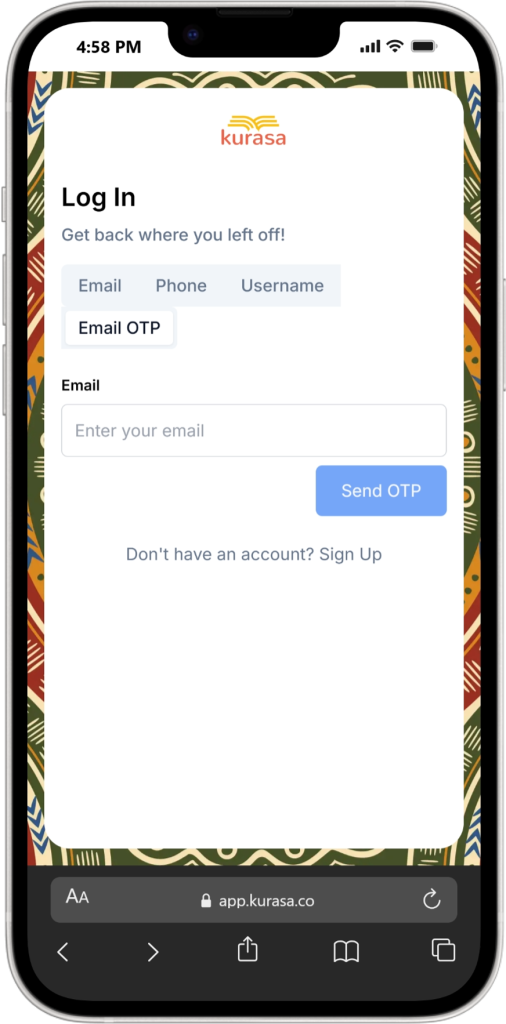
On the login page, you will see four login options at the top of the form:
- Phone
- Username
- Email OTP
Each option is explained below.
Log in using email and password #
This is the most common way of logging in to Kurasa.
How it works
- Select the Email tab
- Enter the email address linked to your Kurasa account
- Enter your password
- Click Log In
Use this option if you already have a password set and regularly access Kurasa.


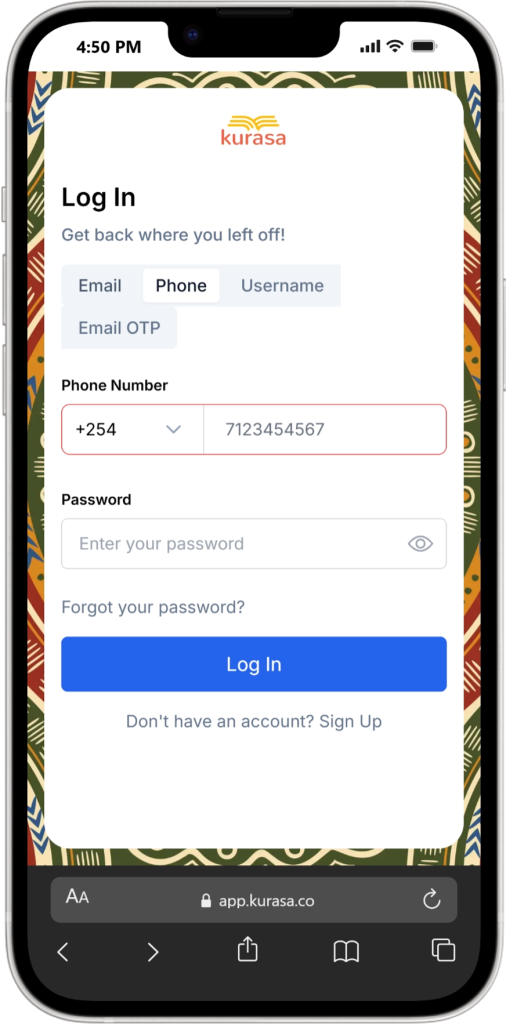
Log in using phone number #
This option allows you to log in using your registered phone number.
How it works
- Select the Phone tab
- Enter the phone number linked to your account
- Follow the verification steps shown on screen
- Complete login
Use this option if your phone number is registered to your Kurasa account and you prefer phone based access.

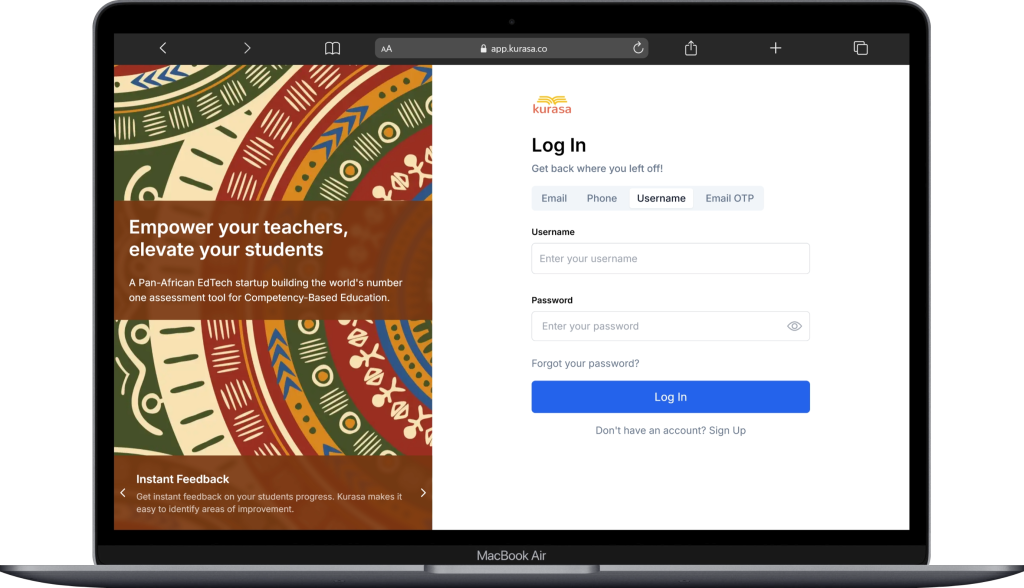
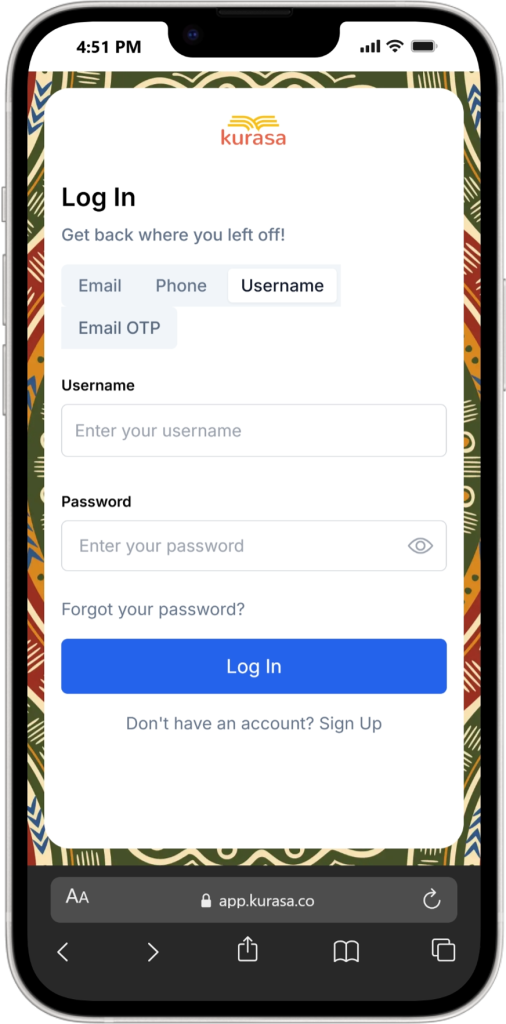
Log in using username #
Some users may have a username assigned to their account.
How it works
- Select the Username tab
- Enter your username
- Enter your password
- Click Log In
Use this option if your school or administrator provided you with a username instead of an email.
Log in using email OTP #
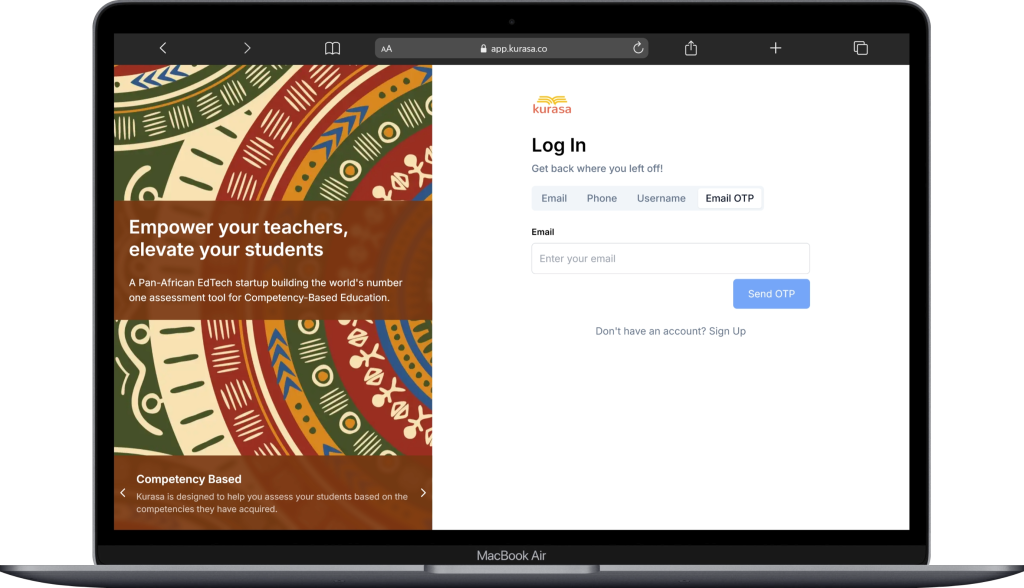
Email OTP allows you to log in without entering a password.
How it works
- Select the Email OTP tab
- Enter your registered email address
- Check your email for a one time login code
- Enter the code to access your account
This option is useful if:
- You forgot your password
- You are logging in on a new device
- You prefer password free login
Forgot your password #
If you cannot remember your password:
- Click Forgot your password
- Follow the instructions sent to your email
- Create a new password and log in again
If you do not receive the email, check your spam folder or confirm you are using the correct email address.
After logging in #
Once logged in:
- You will be taken into your assigned workspace
- Your access will depend on your role and permissions
- If you have access to multiple workspaces, you may be able to switch between them
If you believe you should see something you cannot access, contact your school administrator or Kurasa support.
Need help logging in #
If none of the login options work:
- Confirm your account has been created and activated
- Confirm the email or phone number you are using is correct
- Contact Kurasa support for assistance


