
1.4 Creating a Kurasa Account #
This guide walks you through how to sign up for a Kurasa account, verify your details, and resolve common signup issues. It applies to both desktop (PC) and mobile users.
Overview #
Creating an account with Kurasa allows you to access the platform, set up your workspace, and begin using Kurasa’s assessment and learning tools.
You will learn how to:
- Sign up for a Kurasa account
- Verify your account details
- Complete initial onboarding
- Troubleshoot common signup problems
Prerequisites #
Before you begin, ensure you have:
- A valid email address
- An active phone number (able to receive SMS or calls)
- Stable internet connection
- Access to a desktop browser or smartphone
How to Sign Up on Kurasa #
Step 1: Open the Kurasa Sign-Up Page #
- Visit the official Kurasa platform: https://app.kurasa.co/
- Click Sign Up to create a new account.
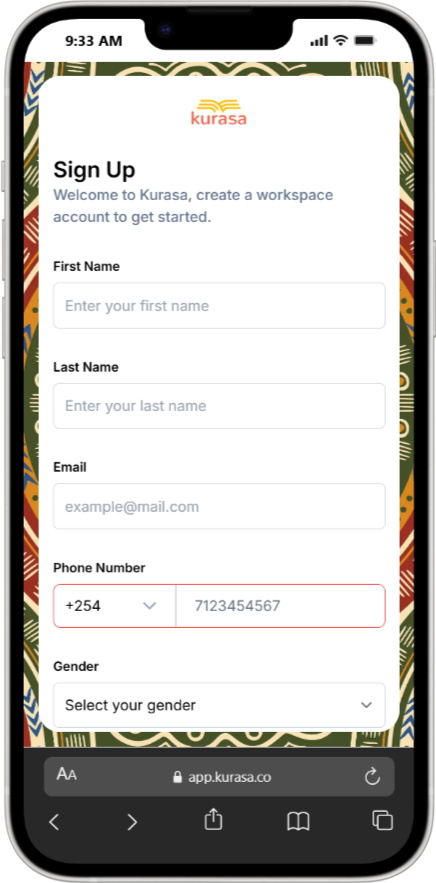
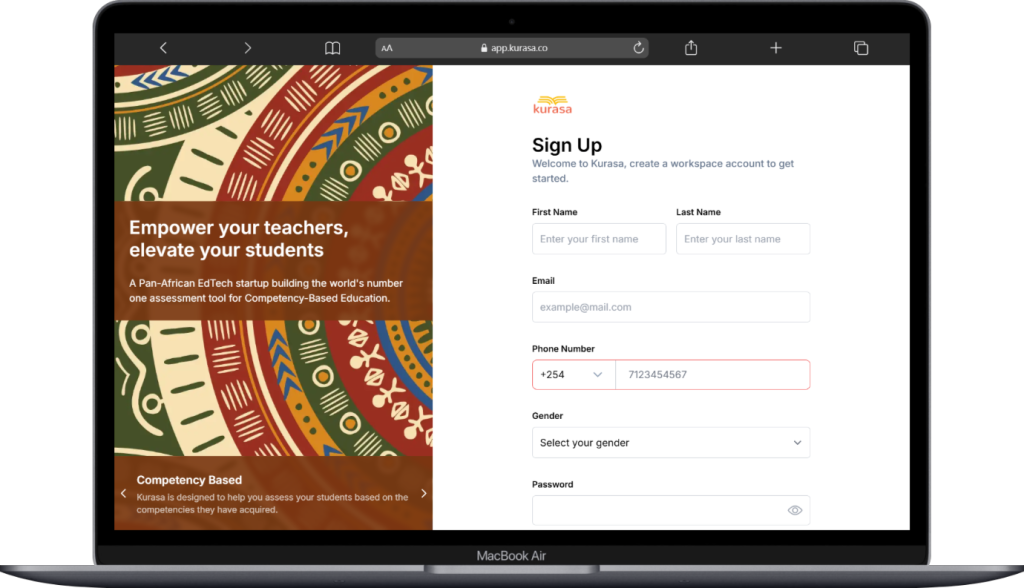
Step 2: Enter Your Personal Details #
Fill in the required fields:
- First Name – Enter your given name
- Last Name – Enter your family name
- Email Address – Use a valid and accessible email
- Phone Number – Select your country code and enter your number
- Gender – Select from the dropdown list
Ensure all details are accurate before proceeding.
Step 3: Create a Password #
- Enter a secure password
- Confirm the password by retyping it
- Use a combination of letters, numbers, and symbols for security
You can toggle password visibility using the eye icon.
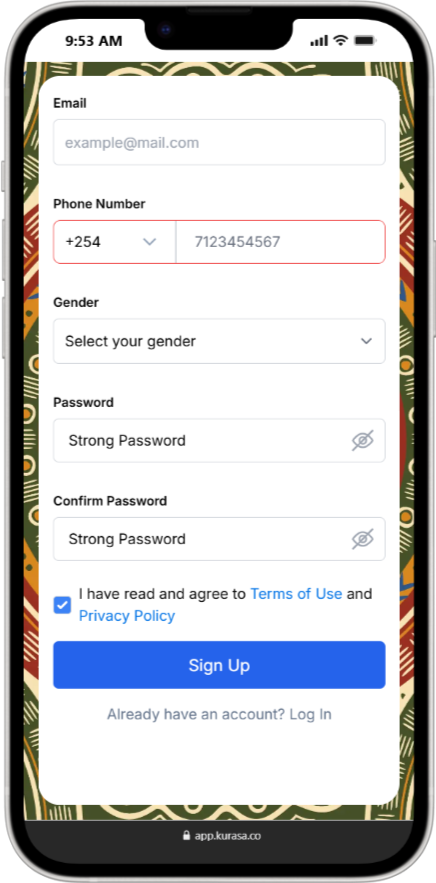
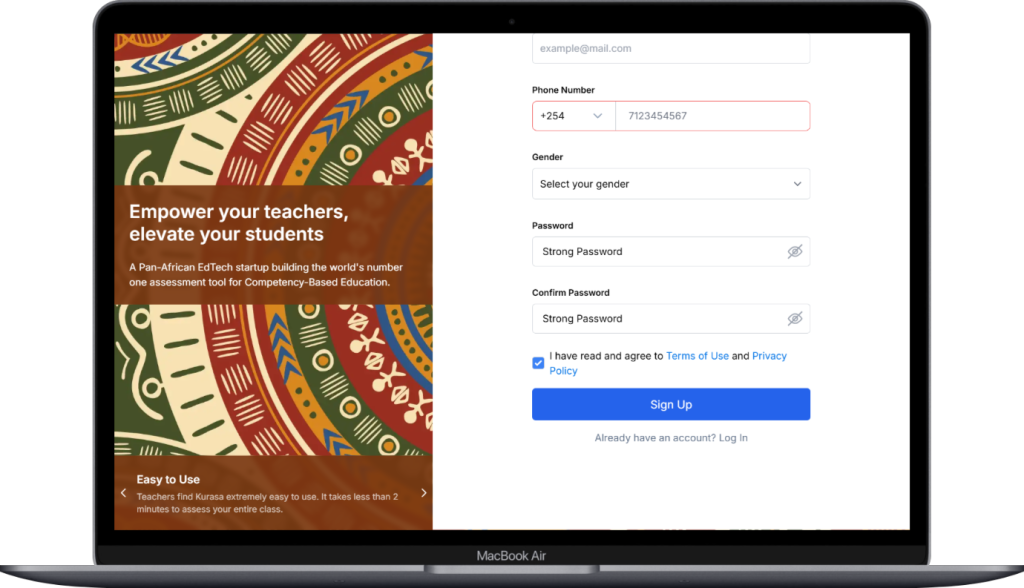
Step 4: Accept Terms and Privacy Policy #
- Check the box to agree to Kurasa’s Terms of Use and Privacy Policy
- You must agree before continuing
Step 5: Complete Registration #
- Click Sign Up
- Your account will be created once the information is validated
If successful, you will be redirected to the next step of account verification or onboarding.
Account Verification and Onboarding #
Email Verification #
- Check your inbox for a verification email from Kurasa
- Click the verification link to confirm your email address
- If you don’t see the email, check your spam or promotions folder
Phone Number Verification #
- You may receive a one-time code (OTP) via SMS
- Enter the code on the verification screen to confirm your number
Common Signup Issues and Solutions #
1. Email Not Received #
Possible causes:
- Incorrect email address
- Email filtered to spam
Solution:
- Confirm your email is correct
- Check spam or junk folders
- Request a resend of the verification email
2. Phone Number Validation Error #
Possible causes:
- Incorrect country code
- Invalid number format
Solution:
- Select the correct country code
- Remove leading zeros if required
- Ensure the number is active
3. Weak or Invalid Password #
Possible causes:
- Password does not meet security requirements
Solution:
- Use a stronger password with letters, numbers, and symbols
4. Unable to Submit the Form #
Possible causes:
- Missing required fields
- Terms and Privacy Policy not accepted
Solution:
- Review the form and complete all required fields
- Ensure the checkbox is selected
5. Already Have an Account #
If you already have a Kurasa account:Need More Help?
If you continue experiencing issues:
- Contact Kurasa Support through the Help Center: +254208000208
- Provide screenshots and a brief description of the problem for faster assistance
Next Article: Logging In to Your Kurasa Account: https://mykurasa.com/docs/signing-into-kurasa-account-how-to-log-in/


