
Save and correct assessment entries
Verify a saved observation and correct an open entry without losing its context.
Checked against the current Workspace controls on 29 October 2026.
Overview
Verify a saved observation and correct an open entry without losing its context.
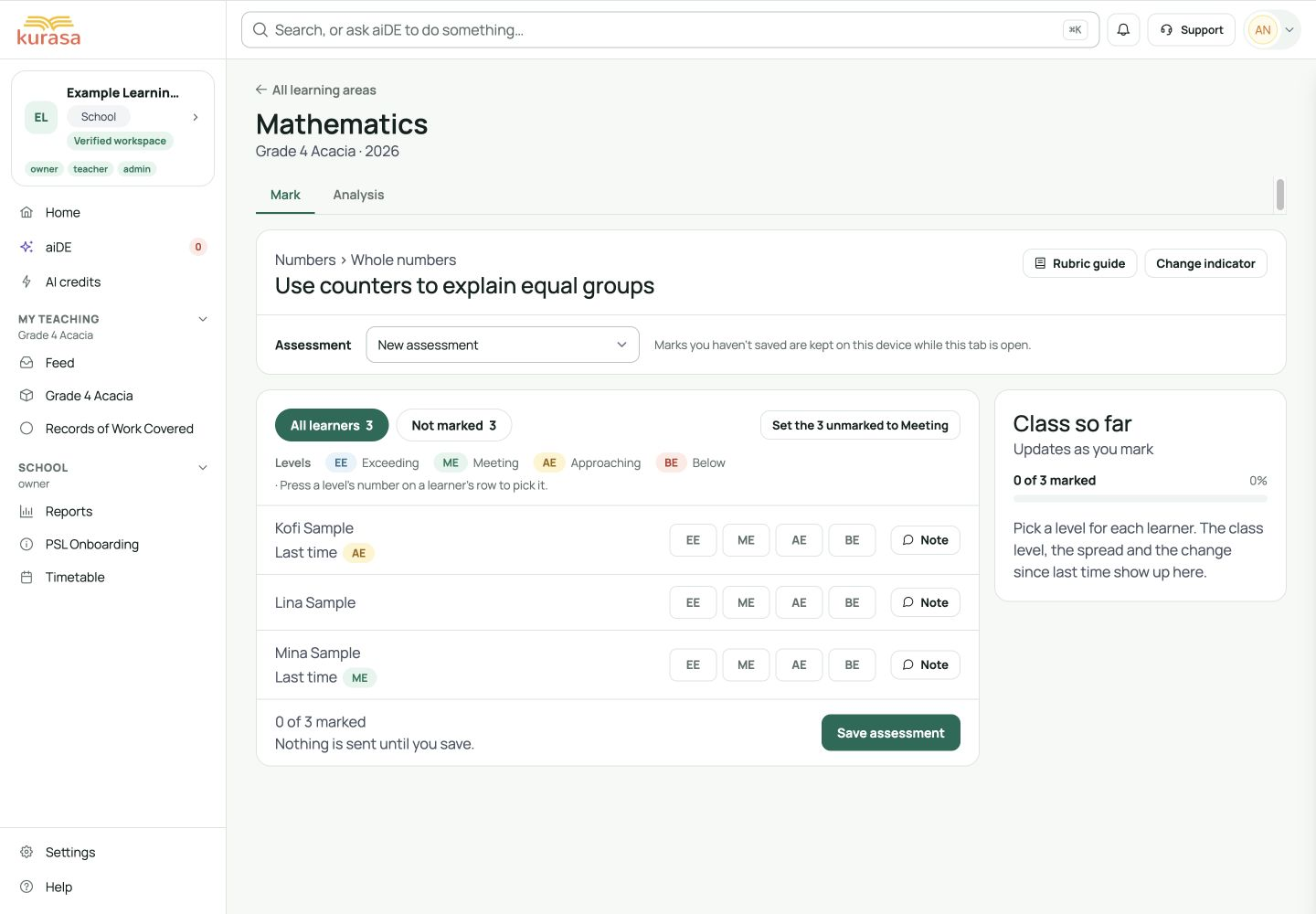
Get to know the screen
Practice example: all names, records and amounts are fictional. Options vary with your school’s curriculum, currency and access.
Phone example
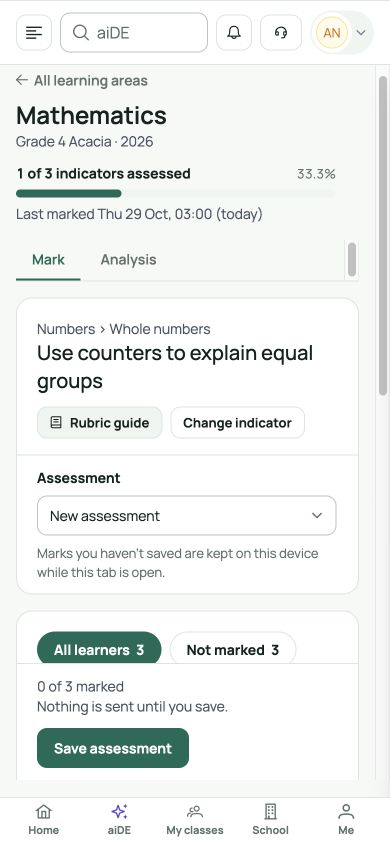
Interface labels are shown in English. Follow the translated steps below to find each control. Follow the sequence, review the recorded information and choose the next step.
Who can use this feature
Sign in to the correct school. Formative marking uses your teaching allocations; creating groups, importing marks and releasing reports require the appropriate school permissions. Your plan and enabled modules determine which menus appear.
Before you start
Prepare the class list, teacher allocations, curriculum and school calendar. Use the school’s configured rubric: Ghana CCP content standards and indicators, Kenya CBC/CBE strands and indicators, or the configured national or international programme. Check school settings before applying a grading scale.
Identify the exact class, indicator and dated assessment to review.
Required and optional fields
| Field | Requirement | Format or example | Prerequisite |
|---|---|---|---|
| Assessment instance | Check before continuing | Choose New assessment for a fresh observation, or the dated existing instance to review it. Existing formative entries are editable only while open; closed entries remain read-only. | School class lists and teacher allocations; configured curriculum, calendar and saved source records. |
| Indicator and observed learner levels | Required in this form | Choose an indicator and at least one observed learner’s rubric level. Partial assessments are allowed. Leave unobserved learners unmarked; a missing observation is not zero. | School class lists and teacher allocations; configured curriculum, calendar and saved source records. |
| Note and evidence file | Optional | Optional for an assessed learner: describe the activity, support used and next step; attach one relevant file where offered. A note or file without a selected level must be completed or removed before saving. | School class lists and teacher allocations; configured curriculum, calendar and saved source records. |
Picklist prerequisites
| Choice | Options come from | Earlier selection | If missing |
|---|---|---|---|
| Class and subject choices | Existing classes for the academic year and your permitted teaching or leadership scope. | Set up classes and allocations first; choose the class before a dependent subject. | Check active allocations and year. A disabled subject control may be waiting for a class. |
| Curriculum indicators and rubric levels | The selected class, allocated subject and configured curriculum hierarchy. | Open the learning area, then choose an indicator. Read its rubric before selecting a level. | Clear an over-specific search; confirm curriculum, subject allocation and preceding strand, sub-strand or content standard where shown. |
Desktop walkthrough
The walkthrough starts with the full page, follows the controls and returns to context. The video is 45 seconds at normal speed; 1.5× playback and the looping GIF take 30 seconds. Pause or open full screen whenever needed.
Locate the class and indicator
Screen walkthrough · 0:45Download GIF ↓- Open the learning area and indicator. Use the Assessment selector to choose the dated instance.
- Read the status. Open entries can be corrected during the day they were created; closed entries are read-only.
- For an open entry, compare each correction with the original evidence. Update the relevant level or note.
- Save the changes and wait for confirmation. Reopen the same dated instance to verify.
- For a closed record, discuss the correction with leadership. Use New assessment for a genuine fresh observation and keep the earlier context clear.
Mobile walkthrough
Locate the class and indicator
Screen walkthrough · 0:45Download GIF ↓On a phone, close the navigation drawer and work through one learner or field at a time. Scroll down to the action buttons; wide tables may also scroll sideways. Use landscape for comparison, then recheck class, period and learner before saving.
Save and verify
The correct dated record contains the verified change. A restored device draft still needs an explicit save.
Wait for a saved confirmation, then reopen the same record. A draft kept on this device is preparation; it is not a saved school record. When a connection fails, check whether the first request succeeded before trying again.
Troubleshooting
The correction controls are locked
Confirm whether the instance is closed and whether you have access. Do not overwrite another observation or create invented evidence to bypass the lock.
A list or menu is missing
Check workspace, role, enabled module, academic year and allocation. Choose the parent option before its dependent field. Ask the administrator to correct the setup; avoid duplicate classes or learners to populate a list.








