
Use the feed and shared resources
Find relevant teaching resources in the feed, save useful material and return to reflect on how you will use it.
Checked on 29 October 2026
Overview
Find relevant teaching resources in the feed, save useful material and return to reflect on how you will use it.
Get to know the screen
Practice example: all names, records and amounts are fictional. Options vary with your school’s curriculum, currency and access.

Phone example
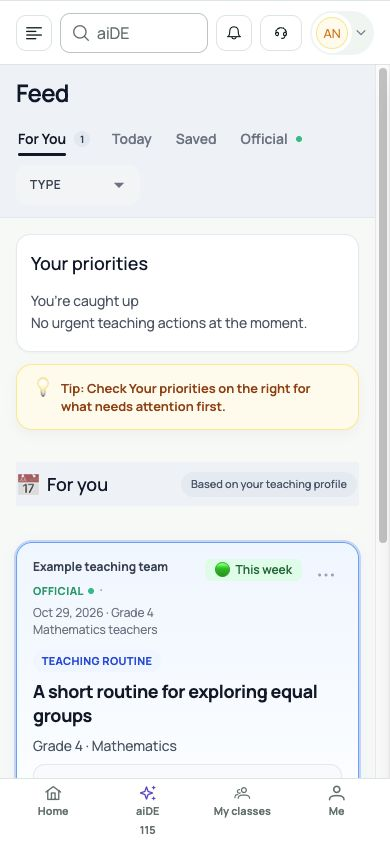
Interface labels are shown in English. Follow the translated steps below to find each control. Follow the sequence, review the recorded information and choose the next step.
Who can use this feature
Sign in with your own account and choose the school workspace. Open aiDE, AI credits, Questions or Feed from the available navigation. Access and options depend on your workspace role and teaching assignments.
Before you start
Open Feed in your workspace. Suggestions depend on the available cards and your teaching context. File previews, comments and action buttons appear only when that card provides them.
Required and optional fields
| Field | Requirement | Format or example | Prerequisite |
|---|---|---|---|
| Tab and type / question filters | Optional | Optional filters narrow existing cards or questions. Clear them when checking an empty list. | Current workspace, your permissions and the selected saved records. |
| Resource comment | Required when applicable | Required only when posting: non-empty text, up to 5,000 characters. Comments must be enabled on the card. | Current workspace, your permissions and the selected saved records. |
| Not relevant reason / snooze date | Required when applicable | Choose a reason for Not relevant, with an optional comment. Snooze requires a future date. | Current workspace, your permissions and the selected saved records. |
Picklist prerequisites
Feed tabs and Type are built-in filters. Cards and their actions come from available content, teaching context and card settings. Comment, file and pack controls need a card that provides them; empty filters do not create resources.
Desktop walkthrough
Check the page, school and current context.
Screen walkthrough · 0:45Download GIF ↓- Read For You, Today or Official, and use the Type filter to narrow the list. Check the source, grade, subject, description and suggested time before opening a card’s action.
- Choose Save for material you want to revisit. Open Saved to find it again. Saving a card bookmarks it; follow the resource’s own action to open a linked page or available file.
- For a file or resource pack, preview the available item, switch between pack files and check the content before downloading. If a card links to a question or learning activity, review that destination as well.
- When comments are enabled, type a useful professional comment and choose Post Comment. Wait for the comment to appear. Discuss the activity or prompts without including private learner details.
- Use More actions to manage relevance or return later. Not relevant needs a reason; Snooze needs a future date. Check Saved and the updated card state. A completion mark records an action, not evidence of learner understanding.
Mobile walkthrough
Check the page, school and current context.
Screen walkthrough · 0:45Download GIF ↓On a phone, the feed cards stack below the tabs and type filter. Scroll through a card to reach Save, its main action and comments. Type and post a comment, then return to Saved to check the bookmark. Open available files in the browser viewer if the inline view is too small.
Save and verify
Find the card in Saved and check any posted comment. Open a downloaded file to confirm its content and readability before adapting it for class.
Troubleshooting
A resource or saved item is missing?
Clear the type filter, check the selected tab and workspace, then reload if needed. Recommendations depend on available content and teaching context. A card without a file has no file preview; a restricted or withdrawn resource may no longer open.
If an action fails, preserve your draft, read the error and check the connection. Reopen the same task or list before retrying to avoid duplicate submissions or extra credit use.








