
Add and invite users
Invite staff using checked contacts and agreed roles, then verify joining and teaching access.
Checked on 29 October 2026
Overview
Invite people to the school account they will actually use. An invitation sends a joining message; it is not proof that the person has joined or received the right teaching allocations.
Get to know the screen
Practice example: all names, records and amounts are fictional. Options vary with your school’s curriculum, currency and access.
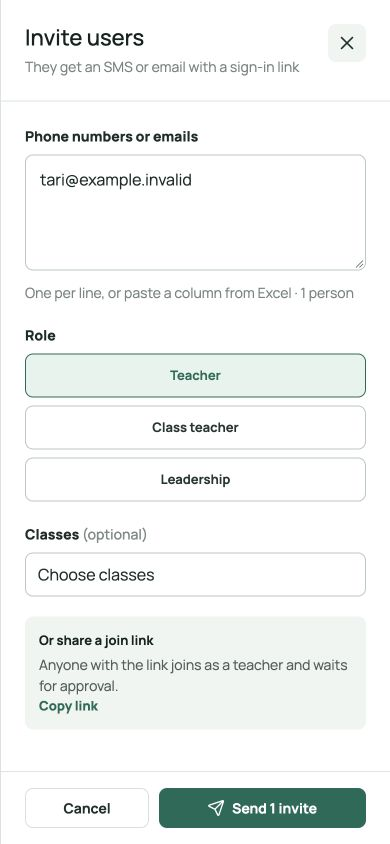
Phone example
Interface labels are shown in English. Follow the translated steps below to find each control. Follow the sequence, review the recorded information and choose the next step.
Who can use this feature
Use an account with school-approved administrative access. Check the school name before managing people or classes. If the action is unavailable, ask the school owner or administrator to confirm your access.
Before you start
Open the intended school and check its current academic year. Use the school’s checked staff, class and learner lists; resolve duplicate records before adding more.
Check the current users and pending invitations first. Agree the role with the school lead and confirm the contact with each recipient.
Confirm each person’s contact and intended responsibility with the school lead. Use individual accounts so each person can sign in and check their own access.
Required and optional fields
| Field | Requirement | Format or example | Prerequisite |
|---|---|---|---|
| Phone numbers or emails | Required in this form | Use checked email addresses, separated by a new line, comma or semicolon. Review the recipient count. | The contact supplied by each staff member. |
| Role | Required in this form | Choose only the responsibility approved for this person; check the actual assigned role after joining. | School-approved responsibilities and available role options. |
| Class placement | Optional | Choose the intended class and stream for the current year. | Existing classes in this school and academic year. |
Picklist prerequisites
| Choice | Options come from | Earlier selection | If missing |
|---|---|---|---|
| Role choices | Roles offered by the school’s invitation or access screen. | Agree the intended responsibility before choosing a role. | Ask the owner or administrator; do not substitute a broader role to continue. |
| Class choices | Classes already created for the school and academic year. | Confirm the school year and create classes first. | Check the year, class setup and your access; a different search will not create a class. |
Desktop walkthrough
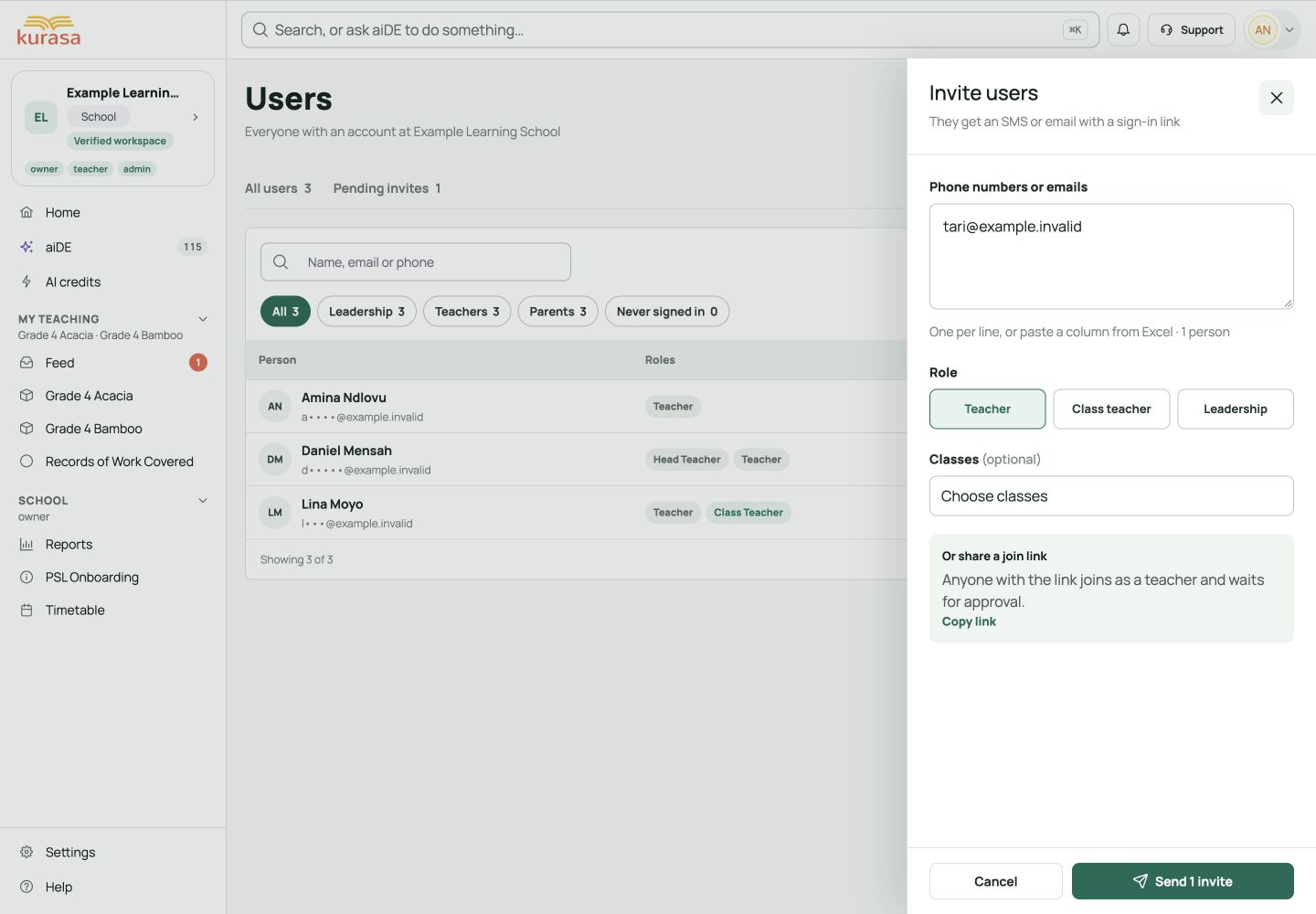
The invite drawer needs at least one valid contact and an agreed role. Check the recipient count before Send and Confirm. The current bulk phone route normalises Kenyan +254 numbers; use email for other countries unless the screen supports the correct dial code. Pending status confirms an invitation record, not that the person has joined.
Check the school, person or class before starting.
Screen walkthrough · 0:45Download GIF ↓- Open Staff and users and choose Invite users. Use a small checked batch so recipients and roles are easy to review.
- Enter email addresses in Phone numbers or emails. Separate recipients by a new line, comma or semicolon and check the displayed count.
- Choose Teacher, Class teacher or Leadership as agreed. Send separate batches when people need different roles.
- Review every recipient and the role. Select Send, read the confirmation and proceed only when those recipients should receive the invitations.
- Open Pending invites to check the entries. After the person joins, reopen their staff details, confirm Assigned Roles and complete teaching allocations separately.
For staff outside Kenya, use email invitations unless the invitation screen explicitly supports the correct international dial code. Check phone formatting with the administrator before sending.
Invitation, school role, class-teacher responsibility and learning-area allocation are separate checks. Check the saved teaching allocation even when a class was chosen in the invitation drawer.
Mobile walkthrough
On your phone, open the school navigation and choose Staff and users. Open the relevant tab or person; scroll the drawer to reach the role and action controls.
Check the school, person or class before starting.
Screen walkthrough · 0:45Download GIF ↓Tap a field to enter or choose a value. Close the keyboard if it covers the lower fields or final button. Review the form from top to bottom before submitting; leaving a drawer is not proof that a change was saved.
Return to the relevant list after the action and reopen the item to check it. On a shared phone, sign out when you finish. Keep the written steps available while you follow the highlighted screen areas.
Save and verify
Check both sides of the process: the invitation is listed, and the recipient can sign in to the intended school. Then check the role and actual teaching allocation.
Troubleshooting
Some recipients may have been invited, but the batch showed an error
Refresh Pending invites and compare each contact before retrying. Resend or correct only the entries that need it; repeating the entire batch can send another message to people already invited.
An option or person is missing
Check the school, your role, the academic year and the upstream setup first. Clear search filters and wait for lists to load. If the option is still missing, ask the administrator to check membership, class setup or allocation.
The action is blocked or the response is unclear
Read the message beside the field and correct the specific entry. If a request may already have completed, refresh and inspect the saved list before trying again. Avoid repeated submissions that could add duplicates or send messages twice.








