
Set up and maintain the timetable
Set the school day, check allocations and publish a reviewed timetable.
Checked on 28 October 2026
Overview
Timetable setup connects section timings, selected subjects, classes and teacher availability. Build and validate a draft before publishing the shared schedule.
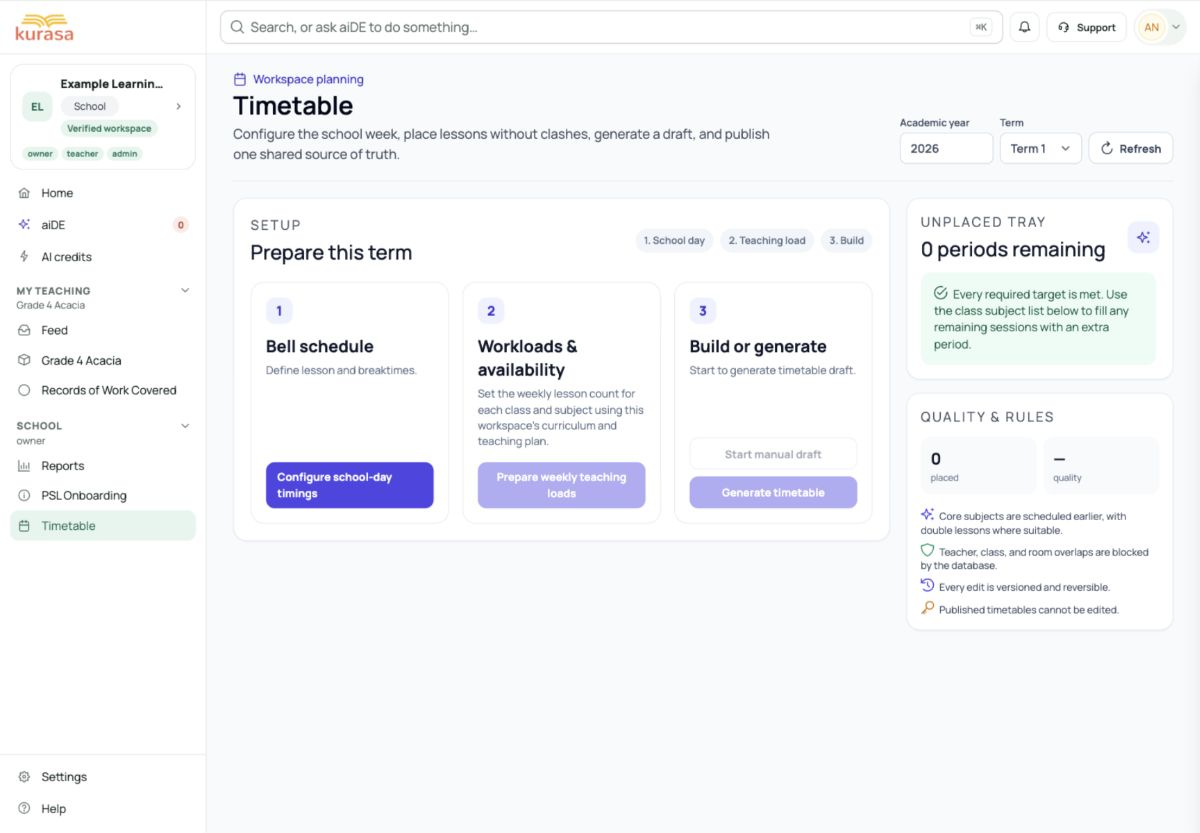
Get to know the screen
Practice example: all names, records and amounts are fictional. Options vary with your school’s curriculum, currency and access.
Phone example
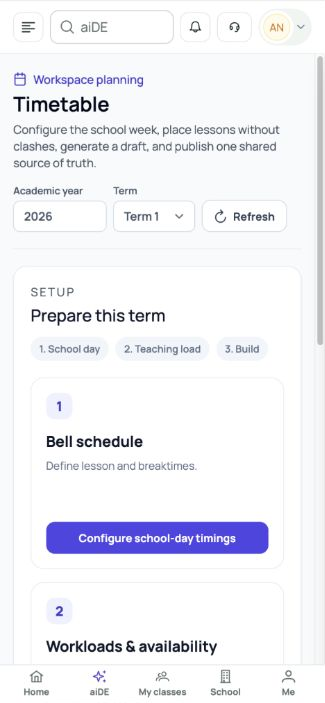
Interface labels are shown in English. Follow the translated steps below to find each control. Follow the sequence, review the recorded information and choose the next step.
Who can use this feature
Use your own authorised school account. Settings usually require owner, co-owner, administrator or school-leadership access; finance and staff-credit actions have their own permissions. Confirm the specific action with the school lead.
Before you start
Confirm the workspace, academic year, school curriculum and your responsibility for this change. Have the approved school records available and review existing settings before entering replacements.
Check term dates, active classes, subject choices and teacher allocations. Agree lesson lengths, breaks and any teacher-availability constraints.
Sign in and choose your school workspace
Required and optional fields
| Field | Requirement | Format or example | Prerequisite |
|---|---|---|---|
| School-day times and breaks | Required in this form | In each timetable section, enter Classes start, Tea break starts and Lunch starts. Tea lasts 5–120 minutes; lunch 10–180. The sequence must not overlap. | The selected academic year, term and approved school calendar. |
| Session counts and lesson durations | Required when applicable | Morning needs 1–12 lessons. Midday and afternoon allow 0–12; required lesson durations are 20–120 minutes. Check fields disabled when a session count is zero. | The selected academic year, term and approved school calendar. |
| Additional timetable segments | Required when applicable | If adding a segment, its label is required (up to 60 characters). Teaching segments need 1–12 sessions of 20–120 minutes; added breaks use 5–120 minutes. | The selected academic year, term and approved school calendar. |
| Section subjects and teacher allocations | Check before continuing | Check selected curriculum subjects, active classes and teachers. Save subject choices separately from timing settings before building the timetable draft. | The school’s enabled curriculum, active levels and available rubric catalogue. |
Picklist prerequisites
| Choice | Options come from | Earlier selection | If missing |
|---|---|---|---|
| Classes, levels and subjects | School curriculum, academic year, active classes and teacher allocations. | Create the class and allocate its subject before downstream planning. | Check archived classes, year and curriculum; restore or correct setup through the appropriate task. |
| Years and terms | The school’s existing academic-year catalogue and term-date records. | Select the year before checking terms and classes. | Clear filters and confirm that the year exists; ask the administrator to check setup. |
Desktop walkthrough
Check when classes start
Screen walkthrough · 0:12Download GIF ↓- Open Settings → Timetable and choose the school section. Check classes start, session counts, lesson lengths, tea and lunch times.
- Read the day preview and fix overlaps. Check any additional segment’s label, type, session count and duration, then save valid timing settings.
- Review the section’s curriculum subjects and Save subject choices separately. Confirm teachers are allocated to the intended class/subject.
- Open Timetable for the intended period. Create a draft or the offered section schedules, then place lessons or use the permitted generation action.
- Inspect clashes, missing teachers and unplaced lessons. Resolve the findings, validate the draft and publish only the reviewed schedule.
Mobile walkthrough
Check when classes start
Screen walkthrough · 0:12Download GIF ↓On a phone, open the school menu and the feature named in the steps. Open one record or panel at a time. Scroll inside drawers and close the keyboard to reach the lower fields and final action.
Choose prerequisite fields first and check any defaults after changing school, year, class or curriculum. For wide grids and large imports, use landscape or a larger screen; the written instructions remain available.
After an authorised save, wait for confirmation and reopen the record. If a request may have completed, inspect the saved state before trying again.
Save and verify
Teachers see the intended published version for the correct period. Saved timing settings and a generated draft are separate from publication.
Troubleshooting
An option or feature is missing
Check school, year, role, curriculum and enabled modules. Clear search filters and wait for loading. Resolve the preceding setup item first; ask the administrator to check access if the choice remains unavailable.
Generation leaves lessons unplaced
Check section capacity, selected subjects, weekly targets, teacher availability and allocations. Resolve the specific finding before generating again.
A change did not save
Read the named validation error and correct that field. Check whether any part of the request succeeded before retrying. Keep the original source record available until the saved version has been checked.








