
Review attendance trends
Review attendance patterns after checking register completeness, then choose a practical follow-up with the school team.
Reviewed against the Workspace controls on 29 October 2026.
Overview
Review attendance patterns after checking register completeness, then choose a practical follow-up with the school team.
Get to know the screen
Practice example: all names, records and amounts are fictional. Options vary with your school’s curriculum, currency and access.

Phone example
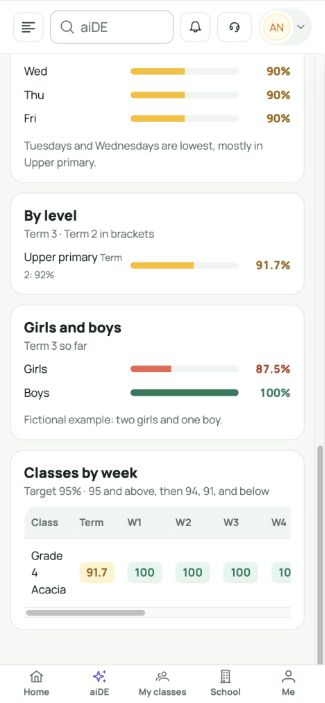
Interface labels are shown in English. Follow the translated steps below to find each control. Follow the sequence, review the recorded information and choose the next step.
Who can use this feature
Open School attendance in the correct workspace. School-wide trends, absence notes, follow-up and rules require administrative or CSO privileges and attendance access.
Before you start
Confirm the school, academic year and date before recording anything. Check that the learner belongs to the selected class for that year.
Complete missing registers and confirm curriculum term dates, active class membership and the selected academic year before comparing periods.
Required and optional fields
| Field | Requirement | Format or example | Prerequisite |
|---|---|---|---|
| Term and level / class filters | Check before continuing | Check the selected period and available filter. These controls change the view, not the underlying attendance record. | Curriculum calendar and loaded data |
| Export scope | Check before continuing | Daily export covers classes for the selected day, or the current class detail. Trends exports the visible class grid for the selected term and level. | A loaded daily or term view |
Picklist prerequisites
| Choice | Options come from | Earlier selection | If missing |
|---|---|---|---|
| Term and level / class filters | Curriculum calendar and loaded data | Term options come from the workspace curriculum calendar. Check the curriculum, academic year and term dates if the expected period is missing. | Level options come from the summary data. Follow-up class options come from learners on that list, so a class with no qualifying learners may not appear. |
Desktop walkthrough
Check the term and date range.
Screen walkthrough · 0:45Download GIF ↓- Open School attendance → Trends. Check the selected term and the displayed start and end dates.
- Review the daily chart and weekday pattern. Compare with the class register before drawing a conclusion from a low point.
- Choose a level to narrow the level and class comparisons. Scroll to Classes by week; a dash means no value is available.
- Choose Export to download the visible class grid. Use the pattern to agree a check-in, register review or support conversation.
Mobile walkthrough
Check the term and date range.
Screen walkthrough · 0:45Download GIF ↓On a phone, check the term at the top and scroll through the charts. Swipe the Classes by week grid sideways to read later weeks. Export uses the selected term and visible class grid; check the download on your device.
Save and verify
The term calculation gives Full Day 1 and Half Day 0.5 over weekday learner slots. Missing marks contribute no present credit, so incomplete registers can lower the rate. Check the calendar and records before comparing; a percentage does not explain a learner’s absence.
Troubleshooting
A term or chart is empty?
Check the curriculum calendar, academic year, class enrolment and saved marks. An unavailable previous term is not zero attendance. Level filtering narrows the level and class panels; school headline figures remain school-wide.
If saving fails, keep your notes, check the connection and read the error. Reopen the same class and date to check what was saved before submitting again.








