
Manage family invitations and access
Prepare a parent join link and review access requests before learner information becomes available.
Checked on 29 October 2026
Overview
Prepare a parent join link and review access requests before learner information becomes available.
Get to know the screen
Practice example: all names, records and amounts are fictional. Options vary with your school’s curriculum, currency and access.
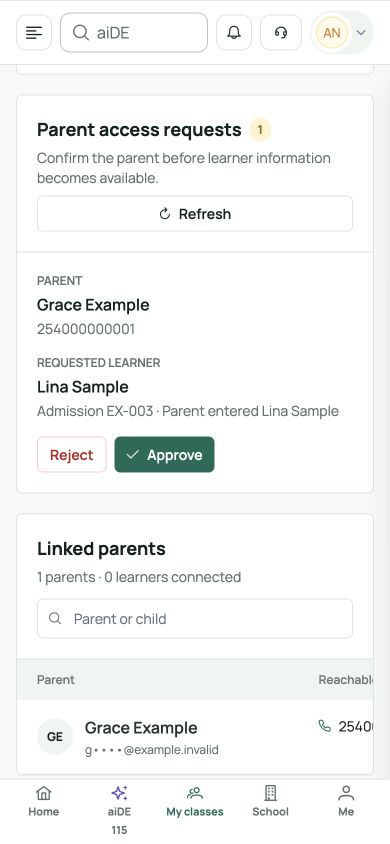
Phone example
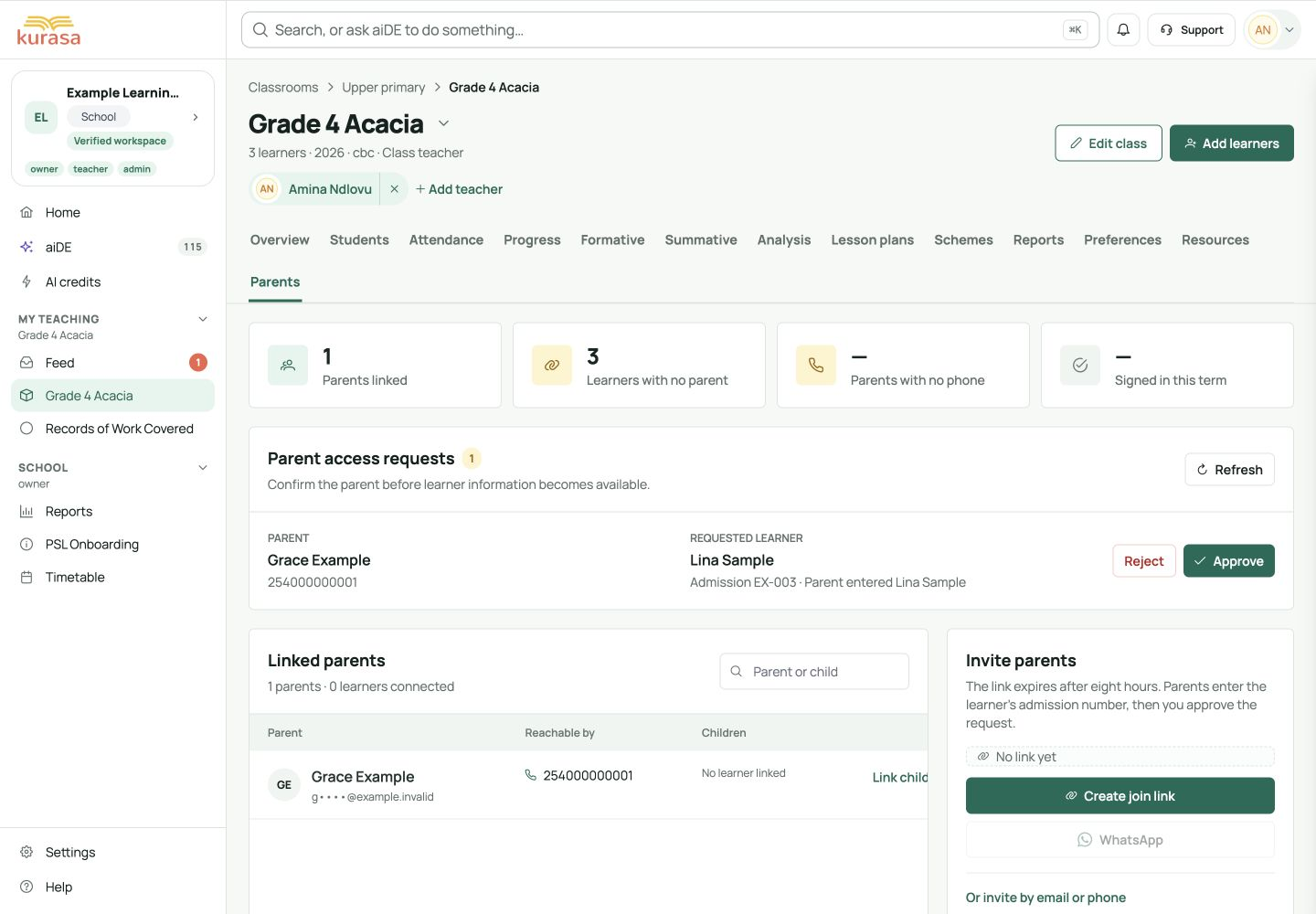
Interface labels are shown in English. Follow the translated steps below to find each control. Follow the sequence, review the recorded information and choose the next step.
Who can use this feature
Use your own account in the correct school workspace. The school Parents directory needs an authorised leadership role. Class teachers can manage parent links for their assigned class. SMS pages require an owner, co-owner or administrator role. Families use their own linked account.
Before you start
You need an existing class and learner admission numbers. A class teacher assigned to the class or an authorised workspace administrator must verify and review parent access requests.
Required and optional fields
| Field | Requirement | Format or example | Prerequisite |
|---|---|---|---|
| Parent invitation / claim | Required in this form | Choose the Parent role for a custom link. A parent claim requires the invitation code, class and learner admission number; approval remains a separate school review. | Current school, permissions, academic year and saved learner/contact records. |
| Custom link restrictions | Optional | Expiry, single use / maximum uses, label, learner selection and phone restriction are optional choices in Settings → Join links. Review their scope before generating and sharing. | Current school, permissions, academic year and saved learner/contact records. |
Picklist prerequisites
Parent claim classes come from the invited school. Review requests appear under the relevant class. Custom-link learner choices come from saved learner records; role and usage options are built in. Check limits and expiry if a link fails.
Desktop walkthrough
Check the school, person and current record.
Screen walkthrough · 0:45Download GIF ↓- In Parents → Add parent, choose Create parent link. The standard shared parent link expires after eight hours. Check the school and expiry before copying it for the intended families.
- The parent uses their own account, opens the link, chooses the class and enters the learner’s admission number. A submitted claim waits for school review; possession of a link or admission number does not by itself establish the relationship.
- Open the class → Parents and read Parent access requests. Compare the parent, contact, requested learner and admission number with the school’s verified information.
- Choose Approve only after verification and read the confirmation about access. Confirm once, or cancel to check further. Reject an incorrect request through its confirmation. Recheck the linked-parent list and remaining requests.
- For an existing parent, Send sign-in link emails the selected eligible contacts, or the current filtered contacts when none are selected; review the confirmation count. Settings → Join links offers separate role, expiry and usage choices. Choose Parent, review any optional learner/phone restriction and share only the intended link.
Mobile walkthrough
On a phone, scroll through the invitation panel to read the link and expiry. In a class, Parents may be under More. Read the complete request and confirmation before approving, then check the updated list. Do not treat a copied link as a completed connection.
Check the school, person and current record.
Screen walkthrough · 0:45Download GIF ↓Save and verify
Check that the approved parent is linked to the intended learner and the request is no longer pending. Confirm sign-in using the family’s own account; do not ask for their password or verification code.
Troubleshooting
The link expired or the request did not appear?
Create a fresh standard link if eight hours have passed. Check school, class and admission spelling, then refresh requests. Custom links can have different expiry or usage limits. Never approve an unmatched request simply to clear the list.
If saving or sending fails, keep the draft and read the error. Reopen the same record or campaign before retrying. Check what was saved or queued first to avoid duplicate invitations or messages.








