
Review communication preferences and opt-outs
Review the school’s sending rules, respect recorded opt-outs and agree a suitable channel with each family.
Checked on 29 October 2026
Overview
Review the school’s sending rules, respect recorded opt-outs and agree a suitable channel with each family.
Get to know the screen
Practice example: all names, records and amounts are fictional. Options vary with your school’s curriculum, currency and access.
Phone example

Interface labels are shown in English. Follow the translated steps below to find each control. Follow the sequence, review the recorded information and choose the next step.
Who can use this feature
Use your own account in the correct school workspace. The school Parents directory needs an authorised leadership role. Class teachers can manage parent links for their assigned class. SMS pages require an owner, co-owner or administrator role. Families use their own linked account.
Before you start
Only authorised SMS managers can change school sending rules. Confirm the intended policy with the school. A school-level setting does not replace an individual family’s communication preference.
Required and optional fields
| Field | Requirement | Format or example | Prerequisite |
|---|---|---|---|
| Sending rules and approval limit | Required when applicable | Manager access is needed to change rules. The form’s approval limit must be a whole number of at least 1. Switches and number changes save immediately. | Current school, permissions, academic year and saved learner/contact records. |
Picklist prerequisites
Sending controls depend on manager permissions. Reply filters depend on received records and a configured inbound number. School rules, opt-outs and a family’s agreed language/channel are distinct checks.
Desktop walkthrough
Check the school, person and current record.
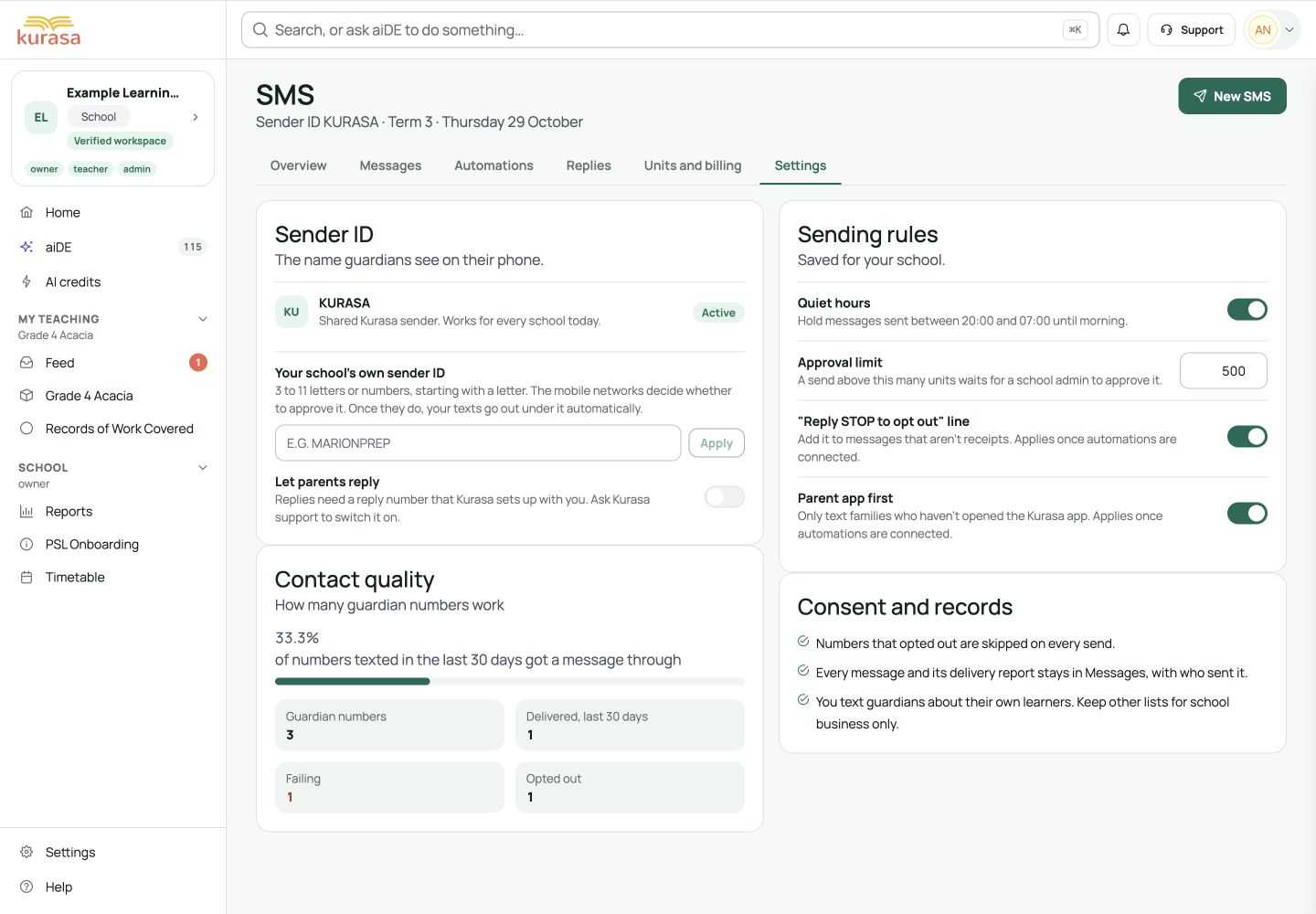
Screen walkthrough · 0:45Download GIF ↓- Open SMS → Settings. Review the active sender, contact quality and opted-out count. A requested sender ID remains pending until the network approves it; requests are not instant changes to the sender.
- Review Quiet hours and Approval limit. The form accepts a whole-number limit of at least 1. Changes save immediately; there is no separate Save button. Wait for errors to clear and reopen Settings to check the intended value.
- Review Reply STOP line and Parent app first. Their current labels say they apply once automations are connected. Do not assume enabling them rewrites every manual message or guarantees a family will use the app. Read the actual message preview.
- In Replies, inspect recorded opt-outs and handled records where available. STOP opts a number out of this school’s SMS and START opts it back in when inbound replies are connected. Reply reception needs a configured reply number; a one-way sender alone cannot receive replies.
- Respect opted-out numbers, which are skipped on sends. Confirm an alternative agreed channel through the school. Check whether a family prefers a language or contact time before preparing text; the SMS Settings page does not provide an individual language selector.
Mobile walkthrough
On a phone, swipe the SMS tabs to Settings, then scroll from contact quality to Sending rules. Change only the intended control and check the saved state. In Replies, filters wrap onto additional rows; Handled may contain earlier opt-out records.
Check the school, person and current record.
Screen walkthrough · 0:45Download GIF ↓Save and verify
Reopen Settings and check the intended switches and approval limit. Verify a preference with the family through the agreed process. A school setting or handled flag does not itself show consent to every message.
Troubleshooting
An opt-out or rule is not behaving as expected?
Check the school and saved value, any save error, the recipient’s recorded number and whether inbound replies are configured. Clear reply filters to find older records. Do not bypass an opt-out by moving the number to a different list.
If saving or sending fails, keep the draft and read the error. Reopen the same record or campaign before retrying. Check what was saved or queued first to avoid duplicate invitations or messages.








