
Check attendance rules and exports
Check the school’s register routine, save agreed thresholds and export the attendance view needed for a review.
Reviewed against the Workspace controls on 29 October 2026.
Overview
Check the school’s register routine, save agreed thresholds and export the attendance view needed for a review.
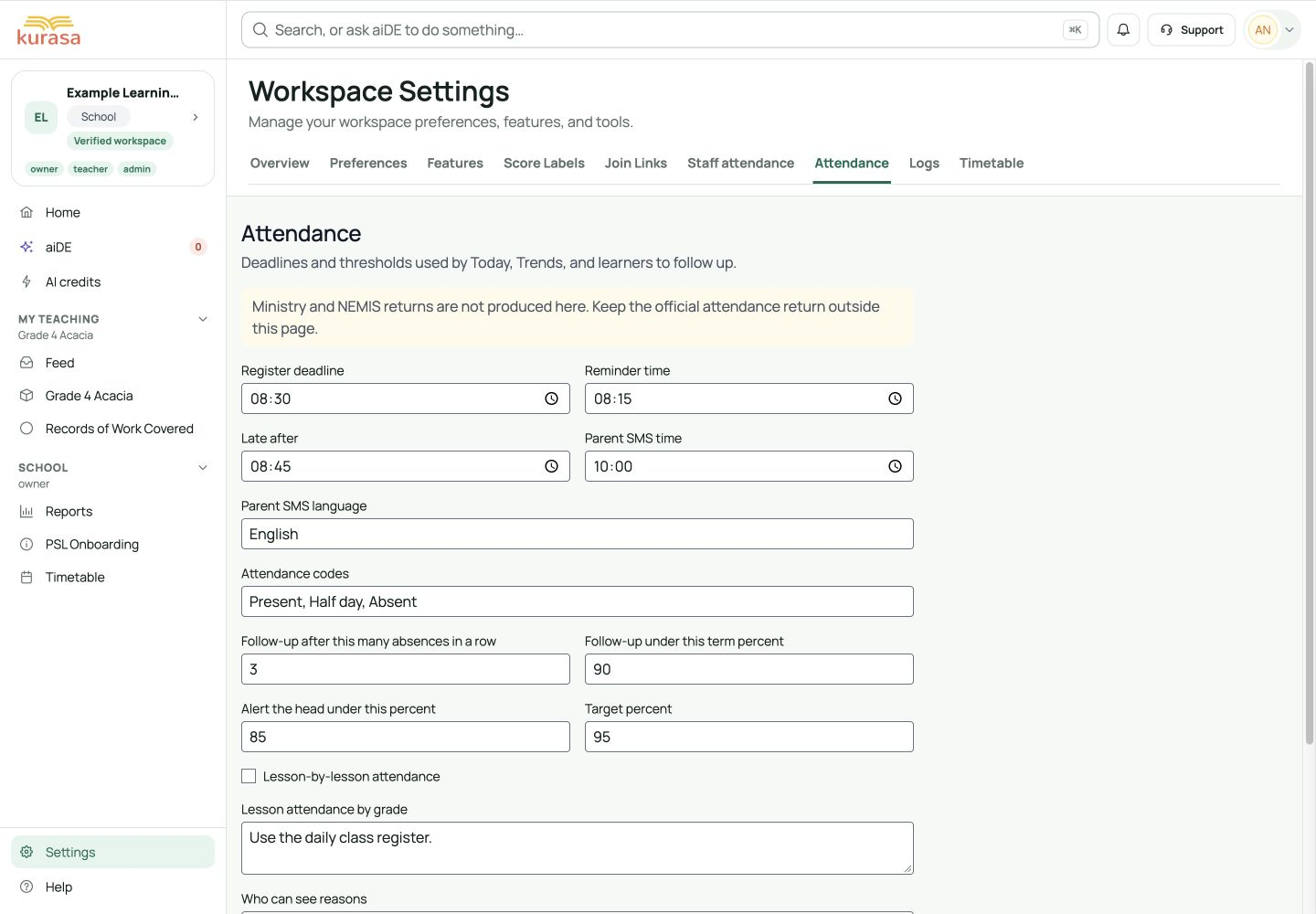
Get to know the screen
Practice example: all names, records and amounts are fictional. Options vary with your school’s curriculum, currency and access.
Phone example
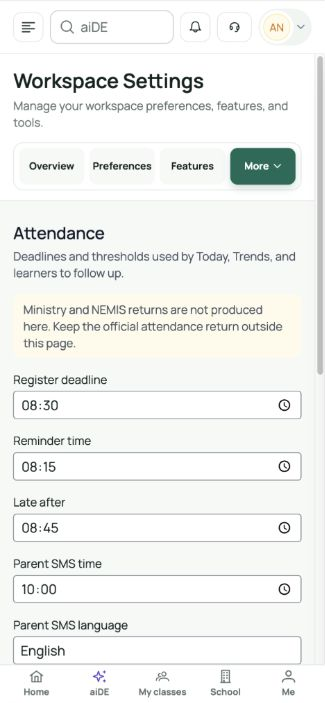
Interface labels are shown in English. Follow the translated steps below to find each control. Follow the sequence, review the recorded information and choose the next step.
Who can use this feature
Open School attendance in the correct workspace. School-wide trends, absence notes, follow-up and rules require administrative or CSO privileges and attendance access.
Before you start
Confirm the school, academic year and date before recording anything. Check that the learner belongs to the selected class for that year.
Agree rule changes with the school lead. Keep the official attendance-return process alongside Workspace records; this page does not produce ministry or NEMIS returns.
Required and optional fields
| Field | Requirement | Format or example | Prerequisite |
|---|---|---|---|
| School attendance rules | Check before continuing | Review the existing school values before saving. These controls do not display required-field markers; keep agreed times and valid numbers. | Administrator / CSO access |
| Export scope | Check before continuing | Daily export covers classes for the selected day, or the current class detail. Trends exports the visible class grid for the selected term and level. | A loaded daily or term view |
Picklist prerequisites
| Choice | Options come from | Earlier selection | If missing |
|---|---|---|---|
| Term and level / class filters | Curriculum calendar and loaded data | Term options come from the workspace curriculum calendar. Check the curriculum, academic year and term dates if the expected period is missing. | Level options come from the summary data. Follow-up class options come from learners on that list, so a class with no qualifying learners may not appear. |
The register supports Full Day (1), Half Day (2) and Absent (3). P, H and A appear in history. A dot or blank means not marked; it is not an absence.
Desktop walkthrough
Review the school’s current rules.
Screen walkthrough · 0:45Download GIF ↓- Open School attendance → Rules, or Settings → Attendance. Review register deadline, reminder time, Late after and parent SMS time and language.
- Check consecutive-absence days, term follow-up percent, head-alert percent and target percent. Use positive whole days and percentages from 0 to 100 as a sensible school convention; the form does not show range validation.
- Review codes, the lesson-attendance switch and the grade and visibility notes. These notes document the school routine; the visibility note does not grant or remove access. Keep the register’s supported three codes.
- Choose Save rules and wait for Attendance rules updated. Reopen the page to verify the values. Saving times or thresholds does not itself send parent messages or place calls.
- For a daily CSV, select the day in School attendance and choose Export. For a term CSV, open Trends, select the term and level, then choose Export.
Mobile walkthrough
Review the school’s current rules.
Screen walkthrough · 0:45Download GIF ↓On a phone, scroll through the stacked settings fields to Save rules. Review the values above the button, save and read the confirmation. For CSVs, return to the day or term view and check the downloaded file.
Save and verify
Daily CSV columns are Class, Level, Present, Half day, Absent, Not marked, Total and Marked. A class detail exports that class; Today exports the day’s classes. Trends exports Class, Level, Term and Week columns for the visible class grid. Check the downloaded file and scope.
Troubleshooting
Nothing exported or a setting seems ineffective?
Load a day with classes or a term summary, check the browser’s downloads and retry once. Confirm rules were saved. A free-text code, language or visibility note is not proof that a separate feature, message or permission is enabled.
If saving fails, keep your notes, check the connection and read the error. Reopen the same class and date to check what was saved before submitting again.








